
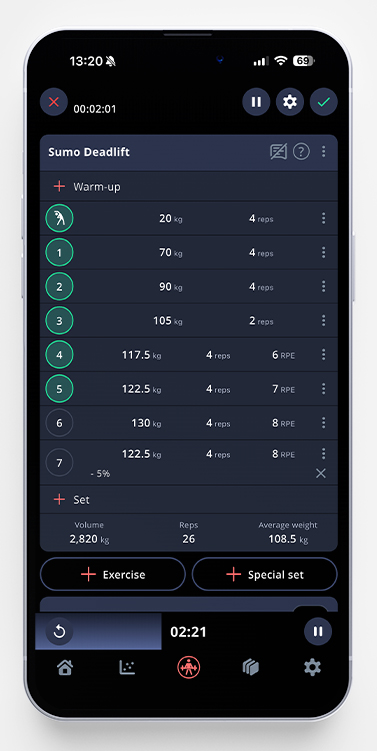
You can change the timer settings during an active workout. Tap the timer field at the bottom to open up a change screen for the timer.
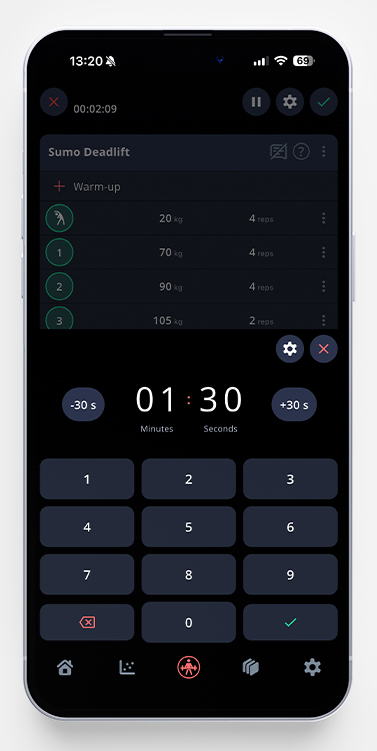
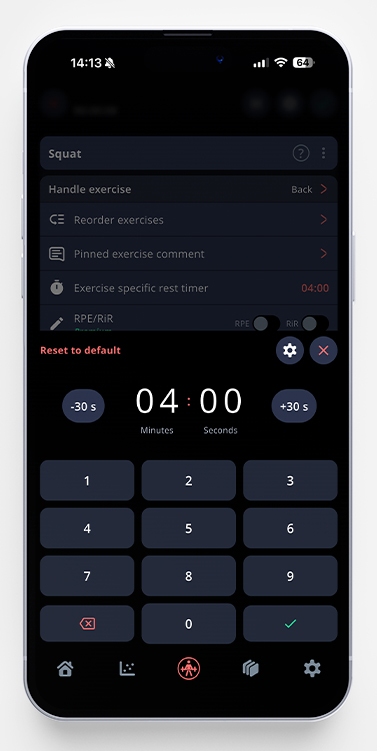
From here, you can change your rest time. Two buttons allow you to easily add/remove 30 seconds to your rest time, or you can enter a time manually.
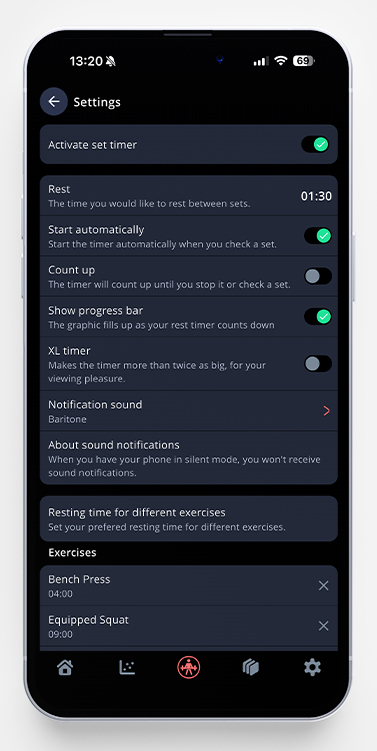
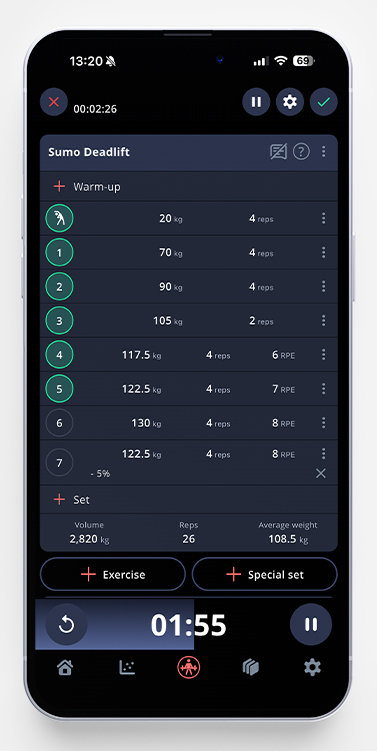
If you tap the small gear icon, you’ll open up the settings for the timer. Here, you’re able to choose if you want the timer to start automatically, if you want the progress bar to be shown, if you want it to count up instead of down, and which notification sound you would like to have. You can also activate our XL version of the timer, which makes it more visible in your workout (see below).
You can also set different resting times for different exercises. Click on Add exercise and choose your settings. Click on the selected exercise to change the time. To save, click Update time.
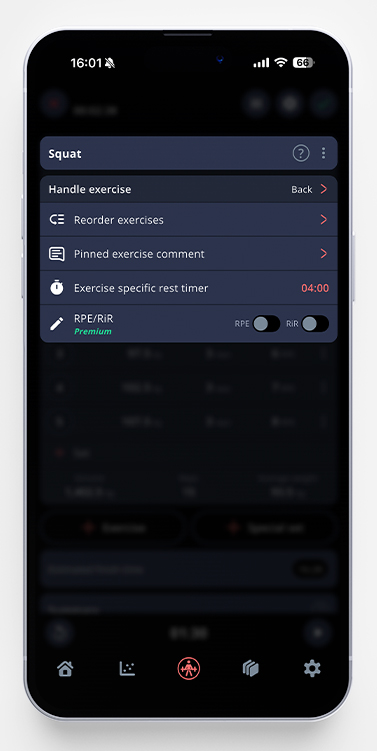
This is also possible to do from the three dots menu on each exercise. Tap Handle Exercise, and then “Exercise specific rest timer”. From there, you’re able to change it. If you want to remove the exercise specific rest timer, just tap the red “Reset to default” text shown in the screenshot below.
Comments are closed.