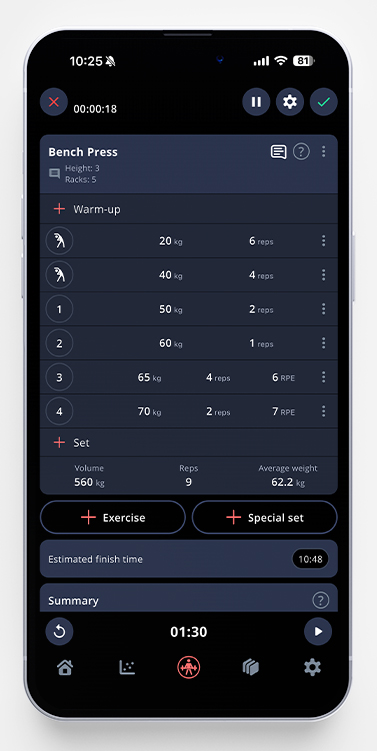
It’s come to my attention that a lot of users are unaware of all the shortcuts in an active workout, so I decided to list them all for you in this article!
Switch Between Warm Up Sets and Working Sets.
In your workout, simply long press on the set number/warm up icon you want to change, and the set will change set type.
Reorder Exercises
If you want to rearrange the order of your exercises in a workout, just long press on the exercise border (of any exercise), and the app will take you to a screen where you’re able to drag and drop the exercises to your preferred order. Once done, tap the arrow in the upper left corner to go back to your workout.
Swipe on Exercises
By swiping on an exercise border, you’ll see three shortcuts.
The first one, history, will show all workouts with said workout. Scroll to the one you want to fetch data from, tap the copy icon, and choose if you want to replace or add the sets to your current workout.
Bonus tip! If you have premium, you are able to change the weight and/or reps in this step as well. An easy way to implement progressive overload into your training.
The second one, change, will bring you to our exercise library. The first column shows similar exercises. If you want to see more info about one of the exercises, just tap the question mark icon. By tapping on an exercise, the exercise will be swapped (Squat to Front Squat in this example). Please note that the weights will remain the same, so you might want to adjust them later on.
And the last one, delete, will delete the entire training block.
Swiping on a Set
Just like with the exercise border, it’s possible to swipe on sets as well to see three shortcuts.
The first one is quick stats. You’ll see several stats about that specific set, like your estimated 1RM, how many % of your 1RM, how many times your bodyweight it is etc. Please note that this is a premium feature. Just tap anywhere outside the box to close it once you’re done, and you’ll go back to the workout.
The second one is to show the comment field for that specific set. Tap it, and start typing your comment.
The last one is to delete that specific set.
Edit Exercise Comments
If you’re using the pinned exercise comments, you might find this useful.
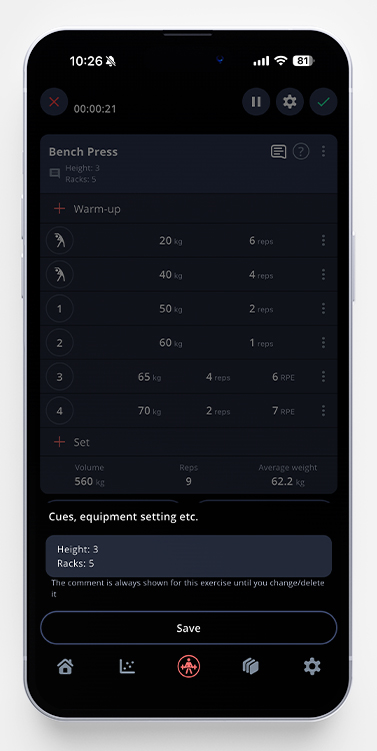
By long pressing on the comment icon in your active workout, you’re able to edit the pinned comment, without going through the handle exercise menu.
Just update the comment in the small pop up, and then tap save.