Some of our premium program are build with progression based on your 1RM.
Before going into how it works in the app, let’s quickly set the definitions for 1RM and PR.
- PR stands for Personal Record and is the heaviest weight you have ever lifted.
- 1RM stands for one-rep max and is the heaviest weight you can currently lift for one rep.
If you want to dig deeper into this, we have a great article on the subject:
1RM vs PR Definition: What’s the Difference?
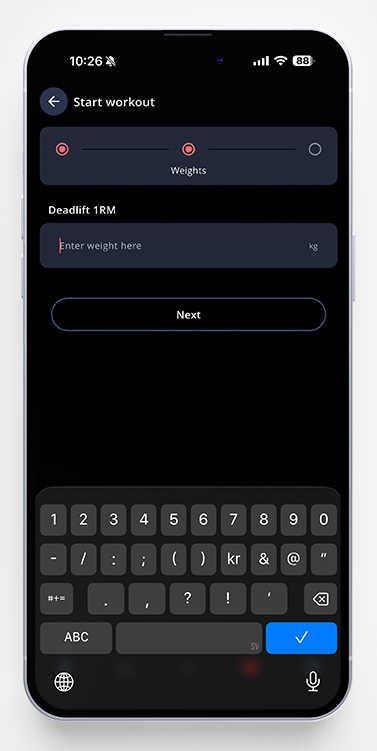
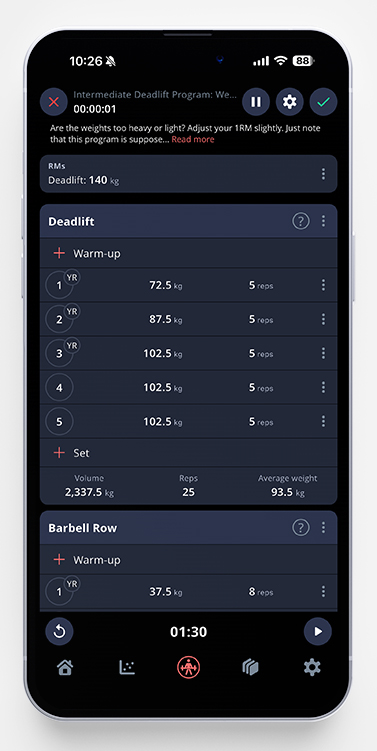
Before starting a program built with that type of progression, you’ll get a prompt to enter your 1RM. After that, you can see your current 1RMs in the active workout, and if you want to update it you just tap the three dots to the right.
This makes it possible for you to start a program based on how strong you are right now, regardless if you have a higher PR.
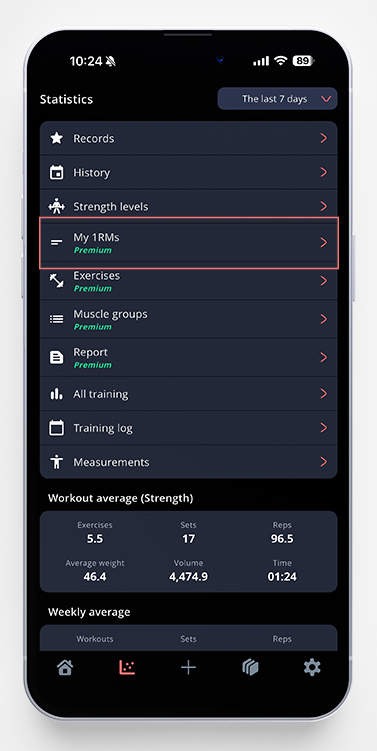
You can see all your entered 1RMs by going to the statistics page in the app and tap My 1RMs. All your exercises with a entered 1RM will show up here. The latest one is the one being displayed, but if you tap the exercise you want to have a closer look at, you can see all your previous ones as well.
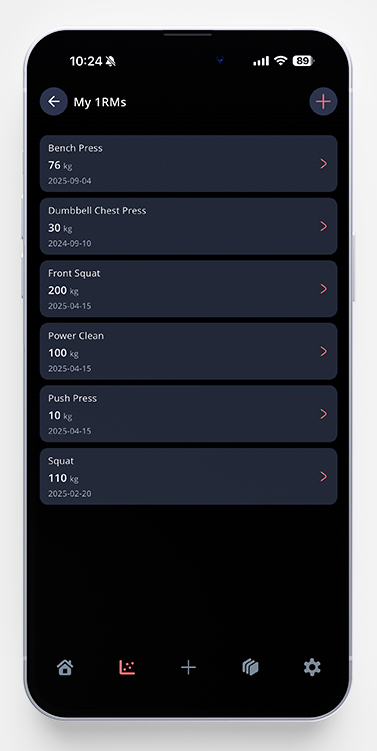
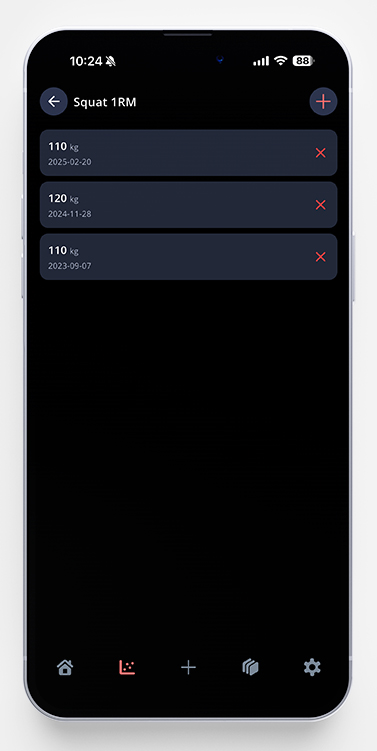
When you look at your 1RM for a specific exercise, you can see which date you entered it as well. In my example below, you can see that I’ve entered three separate 1RMs. The app will always use the latest one in your programs.
To remove a 1RM, just tap the red X to the right of that 1RM and confirm.
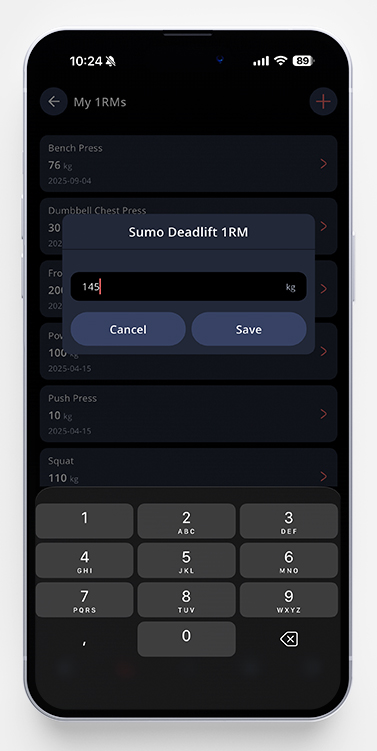
If you want to add a 1RM to a exercise that aren’t in the list, tap the plus sign in the upper right corner. Search for the exercise you want to add a 1RM for, and enter it. Tap save.