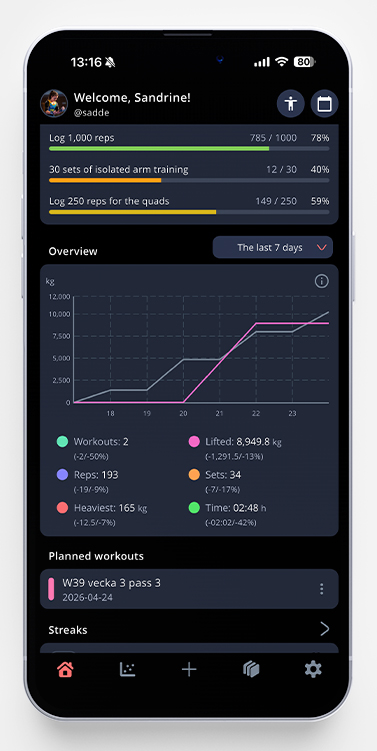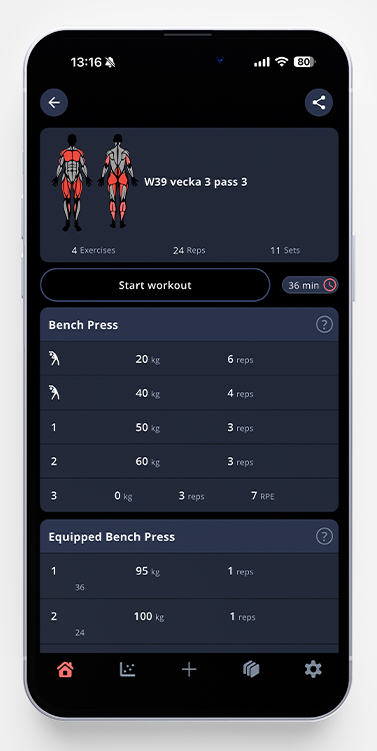
Did you know that it’s possible to plan your workouts for later? Here’s how!
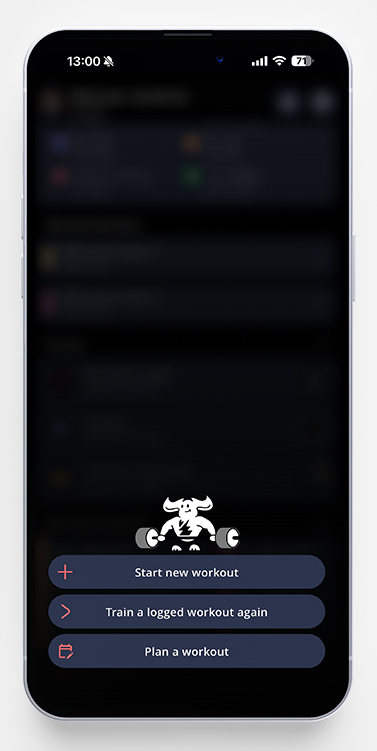
- Click on the + sign in the bottom menu
- Choose Plan a workout
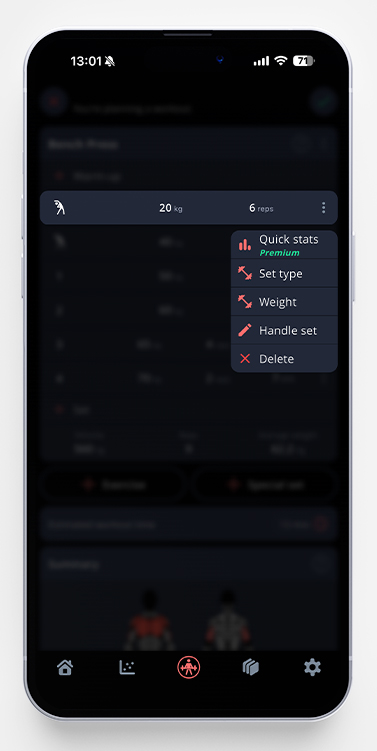
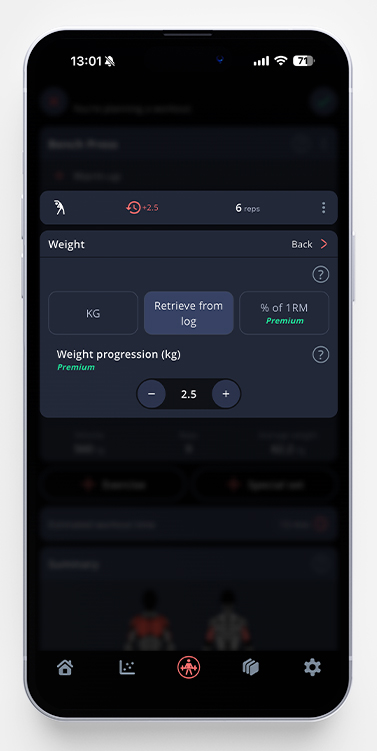
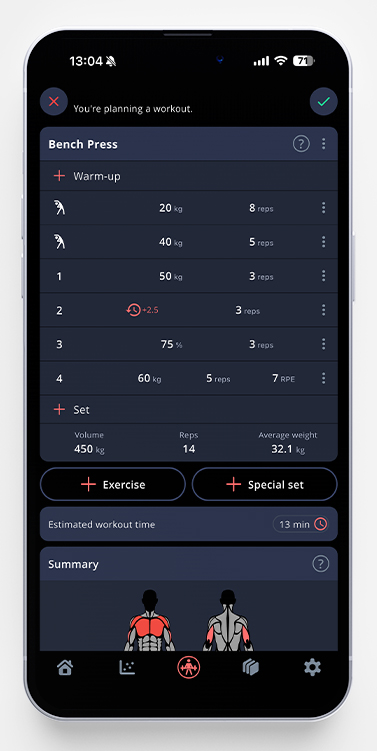
- Plan the workout! The default inputs when you add a set will be weights and reps but it’s also possible to use some other features, like Retreive from log or % of 1RM (the latter is a premium function). Just tap on the three dots to the right of the set, and choose Weight to see all details and change the inputs of the sets.
- When you are happy with your planned workout, tap the checkmark in the upper right corner to give your workout a name, a date (if you want to) and to save.
- When you have saved the workout, it will be shown on your start page.
When it’s time to do the workout, you’ll find it on your home screen in the app. To start the workout, tap it, pick Start workout and record it as a normal workout.